

Move Microsoft Authenticator to a New Device

Applies to: Employees, Students, Duo
Getting a new phone?
Make sure to move your Microsoft Authenticator app so you don’t get locked out of your SMU account or other logins.
Microsoft Authenticator lets you back up your sign-in info to the cloud and move it to your new phone. This guide will walk you through the process, step by step.
Step 1: Back Up Microsoft Authenticator on Your Old Phone
Before switching phones, you need to back up your account information in the app. Even if you're not getting a new device, it's still a good idea to do this in case your phone is lost or stops working.
Backup Info Based on Your Phone Type:
- On iPhone, your data is backed up to iCloud, secured with your Microsoft account.
- On Android, your data is stored on Microsoft’s cloud servers.
How to Back Up Microsoft Authenticator (Old Phone)
- Open the Microsoft Authenticator app on your old phone.
Tap the menu icon:
- On iPhone: three stacked lines in the upper-left
- On Android: three dots in the upper-right
- Select Settings.
Turn on Cloud Backup:
- Tap iCloud Backup (on iPhone)
- Tap Cloud Backup (on Android)

- You’ll see a message confirming which Microsoft account is used for backup.
6. Tap OK.
Step 2: Transfer Microsoft Authenticator to Your New Phone
Now that you’ve backed up your data, you’re ready to move Microsoft Authenticator to your new phone.
Don't delete the app or any accounts from your old phone just yet.
How to Restore Microsoft Authenticator (New Phone)
- Open the Microsoft Authenticator app on your new phone.
- Agree to the license terms and skip any prompts to sign in.
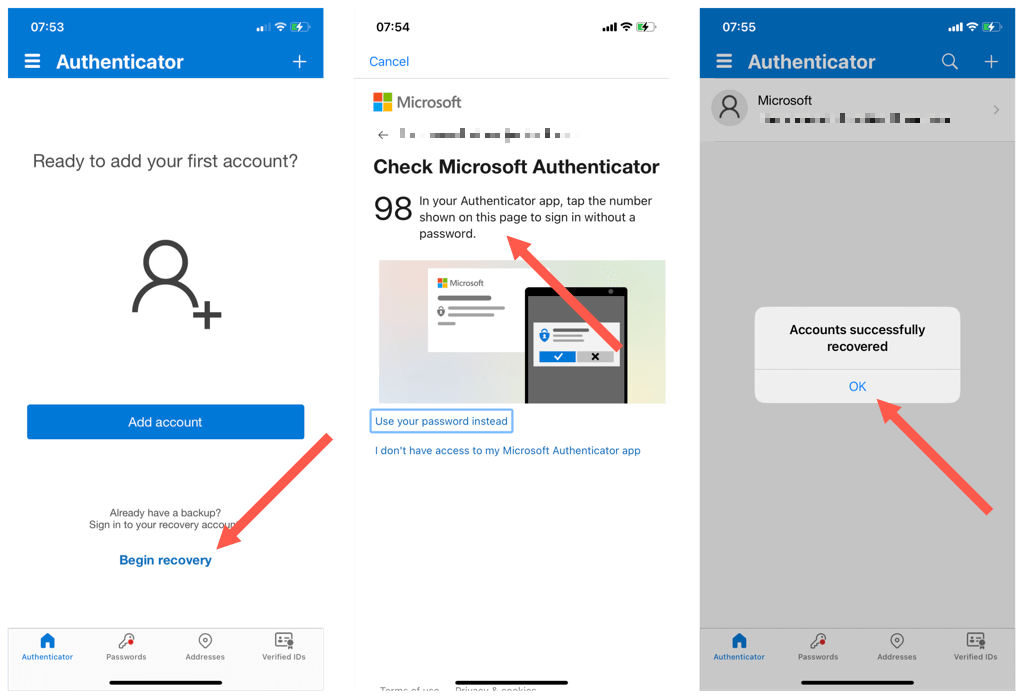
- Tap Begin Recovery (you may need to scroll down to see it).
- Enter the email address you used for the backup (your Microsoft account).
When prompted, enter the verification code sent to your old phone.
- Or use another MFA method like a text message, email, or password.
- Or use another MFA method like a text message, email, or password.
- After your accounts are restored, tap OK.
Other resources

Related articles
+++No tags provided. Please specify a label to filter results.